
To make a budget spreadsheet, you need two tabs and four formulas. One tab logs every transaction (date, description, category, amount). The other lists your categories with a planned amount, then uses SUMIF to pull in what you actually spent, a simple subtraction to show the difference, and SUM to give you a remaining balance for the month. It works the same way in Excel and Google Sheets.
Below is the exact layout, the formulas to type, a worked example with real numbers, and optional 50/30/20 and zero-based tabs. Set it up once in about 45 minutes, then copy it for each month of 2027.
Which budget spreadsheet layout do you need?
Pick your layout before you open a blank file. It decides which tabs you build.
| Your situation | Build this | Tabs |
|---|---|---|
| You just want to see where money goes | Simple budget spreadsheet (income and expense tracker) | Budget + Transactions |
| You want a quick rule of thumb | Simple sheet + 50/30/20 check | Budget + Transactions + 50/30/20 |
| Money is tight or you are paying off debt | Zero-based budget | Budget + Transactions + Zero-based |
| You are paid every two weeks and bills bunch up | Paycheck budget | One small budget per payday |
If you are still working out your categories and savings goals, start with our guide on how to make a budget for 2027, then come back here to build the sheet.
The column layout (copy this)
Here is the whole structure. Keep the column letters the same and every formula below will work as written.
| Tab | Column A | Column B | Column C | Column D | Column E |
|---|---|---|---|---|---|
| Transactions | Date | Description | Category | Amount | Paid with |
| Budget | Category | Group (Needs, Wants, Savings) | Planned | Actual | Difference |
| Lists | Category names | Group names |
On the Budget tab, income goes in rows 3 to 5 with a total in row 6. Expense categories go in rows 9 to 22, with totals in row 23 and the remaining balance in row 25.
How to make a budget spreadsheet in 9 steps
1. Create the file and three tabs
Open a blank workbook in Excel or a blank sheet in Google Sheets. Rename the tabs Budget, Transactions and Lists. Name the file with the month, such as “Budget 2027-01”, so copies stay in order.
2. Set up the Transactions tab
Type the five headers from the table above in row 1. Enter every expense as a positive number in column D. Keep income on the Budget tab instead, so you never mix plus and minus signs in one column.
3. Build a category list with a dropdown
On the Lists tab, type your categories in column A, one per row. Then select column C on the Transactions tab and add a dropdown: in Excel use Data > Data Validation > List, and in Google Sheets use Insert > Dropdown. Point it at your Lists column. This one step prevents most formula errors, because “Grocery” and “Groceries” no longer count as two different things.
4. List your take-home income
On the Budget tab, put each income source in A3 to A5 with the planned amount in column C. Use take-home pay, not your salary before tax. In C6 type =SUM(C3:C5), then copy it to D6 for actual income. If your pay changes month to month, Consumer.gov’s budgeting guide suggests averaging last year’s income over 12 months.
5. Add expense categories and planned amounts
Type the same category names from your Lists tab into A9 to A22, and the planned amount for each in column C. Aim for 10 to 15 categories. More than 20 and you will spend more time sorting receipts than budgeting.
6. Pull in actual spending with SUMIF
In D9, type:
=SUMIF(Transactions!$C:$C, A9, Transactions!$D:$D)
This adds every amount on the Transactions tab whose category matches A9. Copy it down to D22. The syntax is SUMIF(range, criterion, sum_range) in both programs; Google’s SUMIF help page shows more examples.
7. Add a difference column
In E9, type =C9-D9 and copy it down. A positive number means you are under budget in that category. A negative number means you overspent.
8. Total everything and add a remaining-balance formula
In C23 type =SUM(C9:C22) and copy it to D23. Then in D25 type the remaining-balance formula:
=D6-D23
That is actual income minus actual spending. Put =C6-C23 in C25 to see your planned balance. As Consumer.gov puts it, after subtracting expenses from income, “This number should be more than zero.”
9. Add color so problems jump out
Select E9:E22 and D25. Add a conditional formatting rule that turns cells red when the value is less than 0. In Excel it is under Home > Conditional Formatting; in Google Sheets it is Format > Conditional formatting. Now you can check your month in five seconds.
A worked example: $3,800 take-home pay
Say your take-home pay is $3,800 a month. You plan every dollar, log spending for four weeks, and the SUMIF column fills in the actuals. Here is what the Budget tab shows at the end of the month.
| Category | Group | Planned | Actual | Difference |
|---|---|---|---|---|
| Rent | Needs | $1,250 | $1,250 | $0 |
| Utilities | Needs | $180 | $196 | -$16 |
| Phone and internet | Needs | $110 | $110 | $0 |
| Groceries | Needs | $520 | $588 | -$68 |
| Car payment | Needs | $290 | $290 | $0 |
| Gas | Needs | $160 | $142 | $18 |
| Car insurance | Needs | $140 | $140 | $0 |
| Credit card payment | Savings | $200 | $200 | $0 |
| Emergency fund | Savings | $300 | $300 | $0 |
| Sinking funds | Savings | $150 | $150 | $0 |
| Eating out | Wants | $160 | $214 | -$54 |
| Subscriptions | Wants | $40 | $40 | $0 |
| Personal spending | Wants | $200 | $175 | $25 |
| Gifts and misc. | Wants | $100 | $60 | $40 |
| Total | $3,800 | $3,855 | -$55 |
The remaining balance in D25 shows -$55. The red cells point straight at groceries and eating out, which together ran $122 over. Gas, personal spending and misc. came in $83 under, which covered most of it.
That is the real value of a budget spreadsheet. You don’t just learn that you overspent. You learn exactly where, and next month you can move $50 from “Gifts and misc.” to “Groceries” before the month starts.
How to add a 50/30/20 tab
The 50/30/20 rule splits take-home pay into 50% needs, 30% wants and 20% savings and debt payoff. It is a guide, not a law. Add a small tab with these formulas:
- Target for needs: =Budget!C6*0.5
- Target for wants: =Budget!C6*0.3
- Target for savings and debt: =Budget!C6*0.2
- Planned needs: =SUMIF(Budget!$B$9:$B$22, “Needs”, Budget!$C$9:$C$22)
- Share of income: =planned needs / Budget!C6, formatted as a percentage
Repeat the SUMIF line for “Wants” and “Savings”. In our example, needs come to $2,650, which is 70% of income instead of 50%. Wants are $500 (13%) and savings and debt are $650 (17%).
Does that mean the budget is wrong? Not really. In many cities, rent alone eats a big share of pay. The tab simply shows you where the pressure is. Here, it says housing and the car are the levers, not the $40 in subscriptions.
How to add a zero-based budget tab
A zero-based budget gives every dollar a job, so income minus planned spending equals exactly zero. Savings and debt payments count as jobs too.
You don’t need a separate tab for this. Add one cell at the top of the Budget tab labeled “Left to assign” with:
=C6-SUM(C9:C22)
Keep moving money between categories until it reads $0. If it is positive, give the extra a job, like the emergency fund. If it is negative, trim a category before the month starts, not after. Our $3,800 example plans to exactly zero, which is why the overspending showed up so clearly.
Excel or Google Sheets: does it matter?
For a personal budget, the formulas above are identical in both. The differences are practical:
- Google Sheets is free, saves automatically, and lets you share one file with a partner so you both log spending from your phones.
- Excel works offline and handles big multi-year files well. Turning your Transactions range into a table (Insert > Table) makes new rows pick up formatting automatically.
- Either one can open the other’s files. A .xlsx file uploads to Google Drive and opens in Sheets.
Our take: if two people share money, use Google Sheets. If you budget alone and like working offline, use Excel.
8 common budget spreadsheet mistakes
- Budgeting your gross salary. Tax and deductions come out first. Plan from what actually lands in your account.
- Typing totals by hand. A typed “3,855” never updates. Use SUM and SUMIF so the sheet does the math.
- Spelling categories two ways. SUMIF only matches exact names, and an extra space at the end counts as different. Dropdowns fix this.
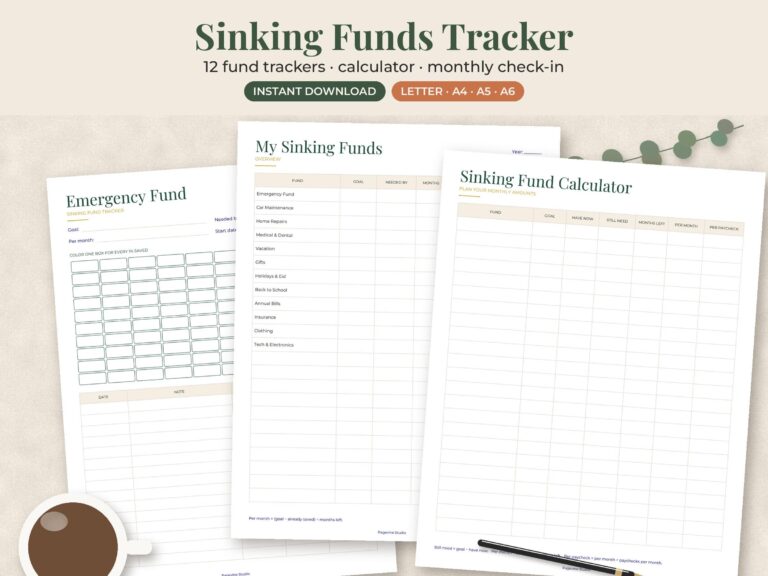
- Forgetting irregular costs. Car registration, school fees and annual subscriptions break budgets. Set aside a monthly amount with a sinking funds tracker.
- Too many categories. Forty lines is a chore. Combine small ones like “Coffee” and “Snacks” into “Eating out”.
- Planning but never tracking. The CFPB’s budgeting guide calls tracking spending “the heaviest lift.” Log purchases every day or two, or go through your bank app once a week.
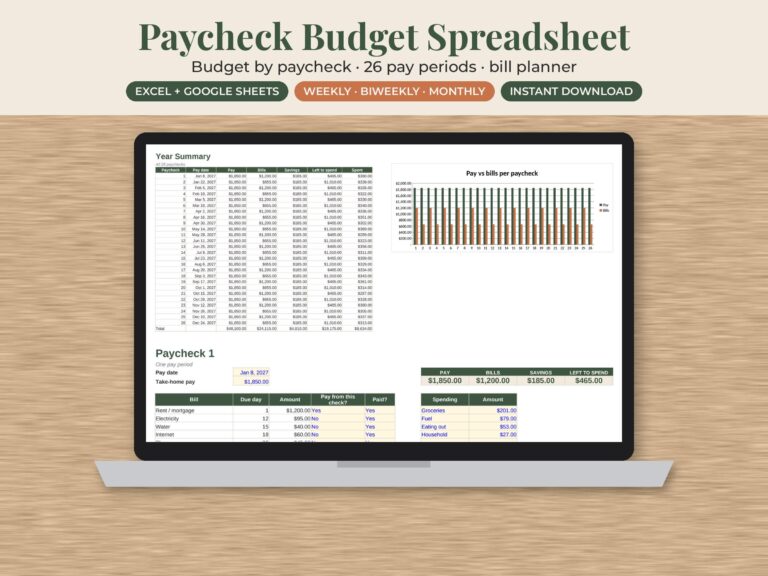
- Ignoring bill timing. Rent and the car payment might both hit before your second paycheck. The CFPB notes that shortfalls often happen because “the timing for your bills and income don’t match.” A paycheck-by-paycheck sheet helps.
- Overwriting last month. Duplicate the file or tab at the start of each month so you keep a record and can compare.
When a ready-made budget template saves time
Building your own sheet is the best way to understand your money. But a template makes sense if:
- You have tried a homemade sheet twice and quit when a formula broke.
- You want extras like a savings tracker or a debt payoff plan without building them yourself.
- You are paid biweekly and need bills matched to the payday that covers them.
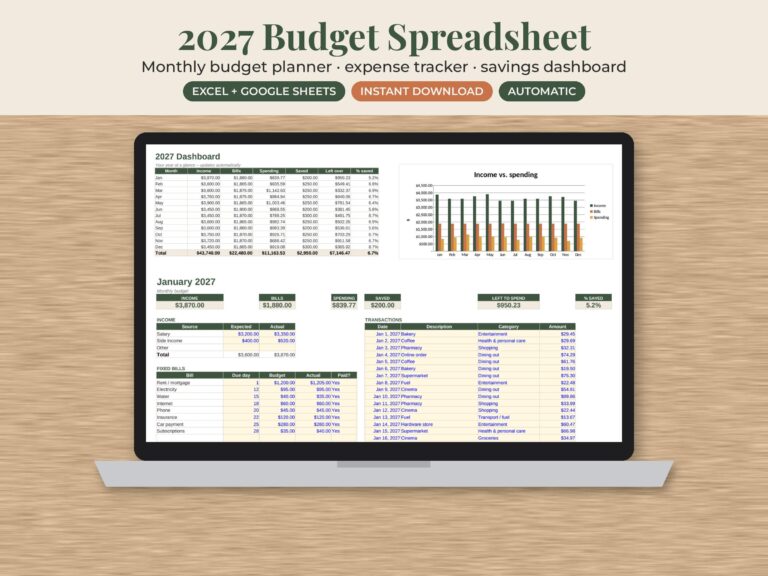
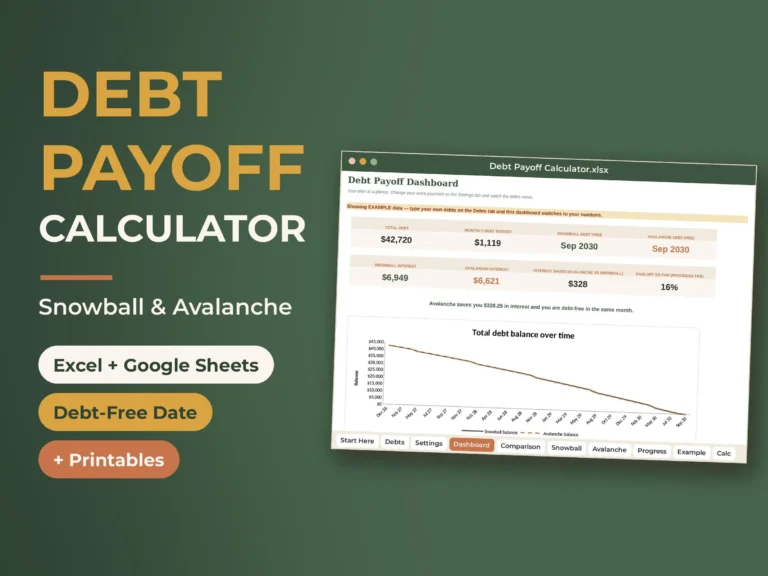
If you want a ready-made version, the 2027 monthly budget spreadsheet includes a monthly planner, an expense tracker and a savings tracker, and works in both Excel and Google Sheets. The paycheck budget spreadsheet plans one biweekly paycheck at a time. If debt is the main goal, pair either one with the debt snowball spreadsheet or browse more options on our budget spreadsheet page and the debt payoff tracker page.
This is general information, not financial advice. Your budget should fit your own income, bills and goals.